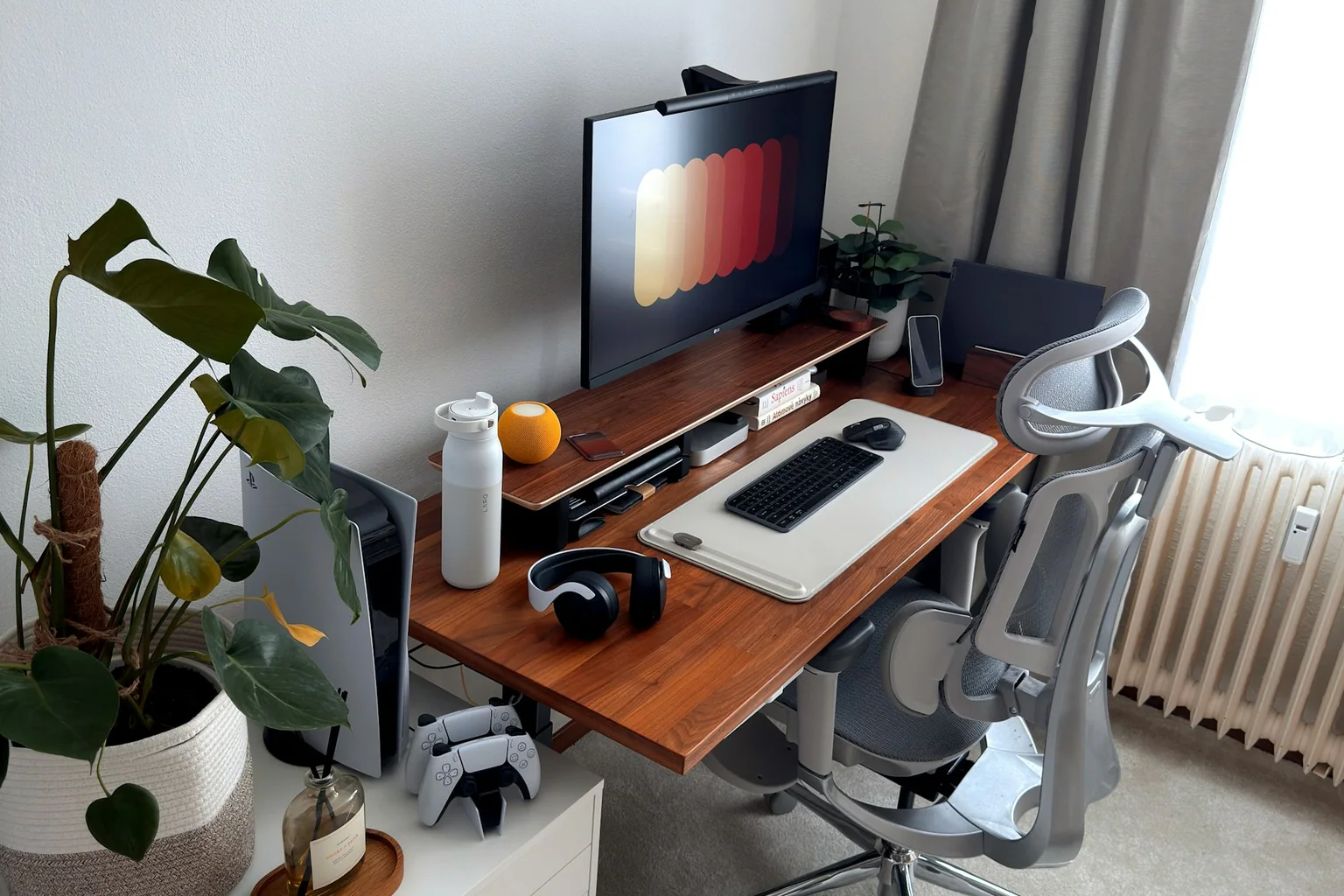
A useful desk accessory should solve a repeated physical or workflow problem. That might be a mouse shape that fits your hand, task lighting that avoids desk clutter, a dock that eliminates cable swaps or a mat that defines space and protects the surface. None can guarantee productivity or prevent injury.
We reviewed current product documentation, compatibility, dimensions, connection limits, material care and ownership tradeoffs. We did not run ergonomic or productivity experiments, so this guide avoids medical claims and performance percentages.
Quick picks
| Product | Best for | Key feature | Price tier |
|---|---|---|---|
| Logitech Lift Vertical Ergonomic MouseBest input-device change | Small-to-medium hands seeking a 57-degree grip | Vertical shape with left-handed version available | Mid-range |
| BenQ ScreenBar Halo 2Best space-saving task light | Desks with limited lamp space | Monitor-mounted front and rear lighting | Premium |
| Anker 675 USB-C Docking Station (12-in-1 Monitor Stand)Best cable-consolidation upgrade | Single-monitor USB-C desks | Dock and monitor riser combined in one platform | Premium |
| Grovemade Wool Felt Desk PadBest for defining the work surface | Keyboard, notebook and accessory organization | 3.5mm wool-felt surface in multiple sizes | Premium |
Our researched picks
Best input-device change
Logitech Lift Vertical Ergonomic Mouse
Lift offers a defined fit profile rather than claiming to suit everyone. Logitech positions it for small-to-medium hands, lists a 57-degree angle and offers right- and left-handed versions, which makes pre-purchase fit easier to assess.
Key specifications
- 57-degree vertical orientation
- Small-to-medium hand positioning
- Right- and left-handed models
- Wireless connection options
Pros
- Clear hand-size guidance
- Left-handed option
- Quiet-click focus
Cons
- Requires an adjustment period
- Not designed for larger hands
- Shape preference is personal
Best space-saving task light
BenQ ScreenBar Halo 2
A monitor light frees the desktop and aims light at the working area. BenQ lists adjustable 2700K–6500K color temperature, front and rear light, a wireless controller, and compatibility hardware for flat and curved displays.
Key specifications
- 2700K–6500K listed range
- Front and rear lighting
- Wireless controller
- Flat and curved monitor support listed
Pros
- Preserves desk surface
- Adjustable color and brightness
- Bias-light component
Cons
- Premium cost
- Monitor and webcam fit must be checked
- Not a room-light replacement
Best cable-consolidation upgrade
Anker 675 USB-C Docking Station (12-in-1 Monitor Stand)
The 675 combines a desktop riser with Ethernet, card readers, USB ports, charging and a single HDMI output. It is most compelling when those connections match the laptop and a stand is already needed.
Key specifications
- 12-in-1 connection set
- Single HDMI output up to 4K/60Hz listed
- Up to 100W host charging listed
- Ethernet and card-reader ports
Pros
- Reduces separate boxes
- Adds monitor height
- Broad port mix
Cons
- Only one HDMI output
- Large desk footprint
- Laptop compatibility and power needs vary
Best for defining the work surface
Grovemade Wool Felt Desk Pad
A large mat can visually and physically define the keyboard-and-notebook zone while protecting the desktop. Grovemade offers five sizes and discloses an important limitation: this felt version is not intended as a direct writing surface.
Key specifications
- 3.5mm listed thickness
- Five size options
- Wool-felt construction
- Optical-mouse compatibility listed
Pros
- Clear size range
- Softens contact with the desktop
- Simple cable-and-object boundary
Cons
- Not ideal for writing directly
- Felt needs careful cleaning
- Premium material price
How we evaluated
We selected one product for each of four common desk problems: input fit, task lighting, connectivity and surface organization. We compared official compatibility statements, dimensions, ports, materials and disclosed limitations.
We did not measure output, eye strain, pain reduction or productivity. A product is included because its design addresses a defined use case—not because Ubestchoices claims a medical or work-performance outcome.
Buying guide
Name the friction first
Write one sentence about the repeated problem: “I swap four cables twice a day” is actionable; “my desk needs an upgrade” is not.
Measure the physical workspace
Check desk depth, monitor base, keyboard width, mouse travel and available clamp area. Product photos often hide scale.
Audit compatibility
For docks and lights, verify laptop ports, operating system, monitor thickness, display requirements and webcam placement before purchase.
Change one ergonomic variable at a time
A new mouse, chair, keyboard and monitor position all at once makes discomfort harder to diagnose. Adjust gradually and stop if symptoms worsen.
Protect cable serviceability
A tidy desk should still let you unplug, inspect and replace a cable. Avoid tightly bending power and display cables for appearance.
FAQ
Do vertical mice prevent wrist pain?
No product can guarantee that. A vertical shape changes hand position and may feel better for some people. Persistent pain, weakness or numbness needs qualified medical advice.
Will any USB-C dock work with any USB-C laptop?
No. USB-C ports can support different data, video and charging capabilities. Match the laptop’s specifications to the dock’s host, display and power requirements.
Is a monitor light better than a desk lamp?
It saves desk space and targets the work area, but a desk lamp can provide more flexible direction and room context. Choose based on monitor fit and the tasks you perform.
What desk accessory should I buy first?
Fix the highest-frequency friction. For some people that is input comfort; for others it is missing ports or poor task light. A written problem list prevents impulse buying.
What we would prioritize
The most defensible desk upgrades are specific: a mouse sized for your hand, lighting that fits the monitor, a dock matched to the computer and a mat sized to the work zone. Skip anything that cannot explain the friction it removes.
Sources and verification
Product availability was checked on . Manufacturer pages remain the final reference because specifications and compatibility can change.
- OSHA computer workstation eTool — General workstation arrangement and neutral-position guidance.